Play Training
How to Use VX Training Center
Introduction 3 of 14
Navigating the Training Center: A Comprehensive Guide
Embark on your learning journey with the Training Center, leveraging these features to enhance your understanding of Vision VX.
Whether you're a newcomer or seeking advanced insights, the Training Center is designed to empower you every step of the way.
Happy learning!
 Related How To Guides:
Let's delve into the functionality of the Training Center and explore the myriad features designed to enhance your learning experience.
Interactive Training Voice Feature:
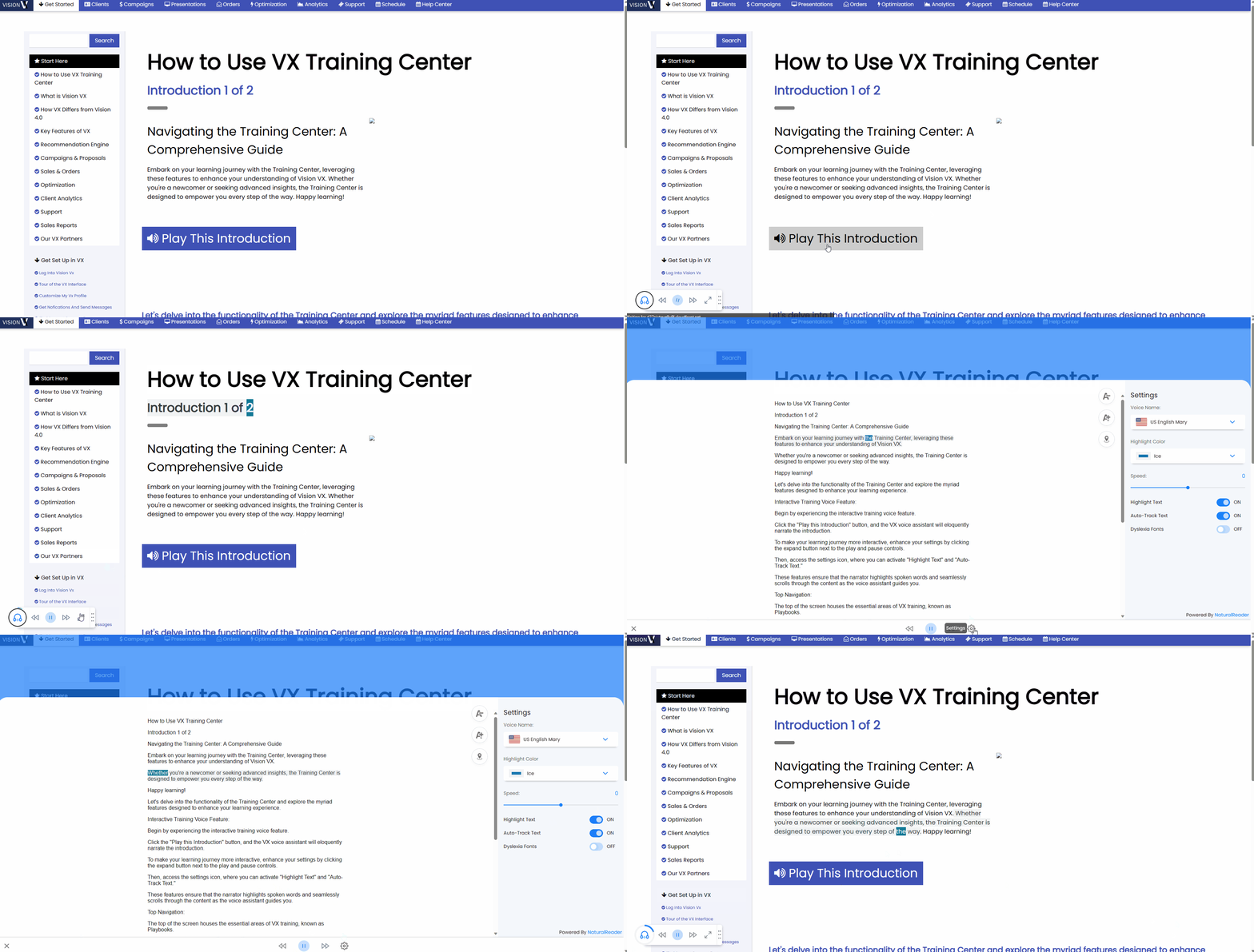
Begin by experiencing the interactive training voice feature. Click the "Play this Introduction" button, and the VX voice assistant will eloquently narrate the introduction.
- To make your learning journey more interactive, enhance your settings by clicking the expand button next to the play and pause controls.
- Then, access the settings icon, where you can activate "Highlight Text" and "Auto-Track Text."
- These features ensure that the narrator highlights spoken words and seamlessly scrolls through the content as the voice assistant guides you.
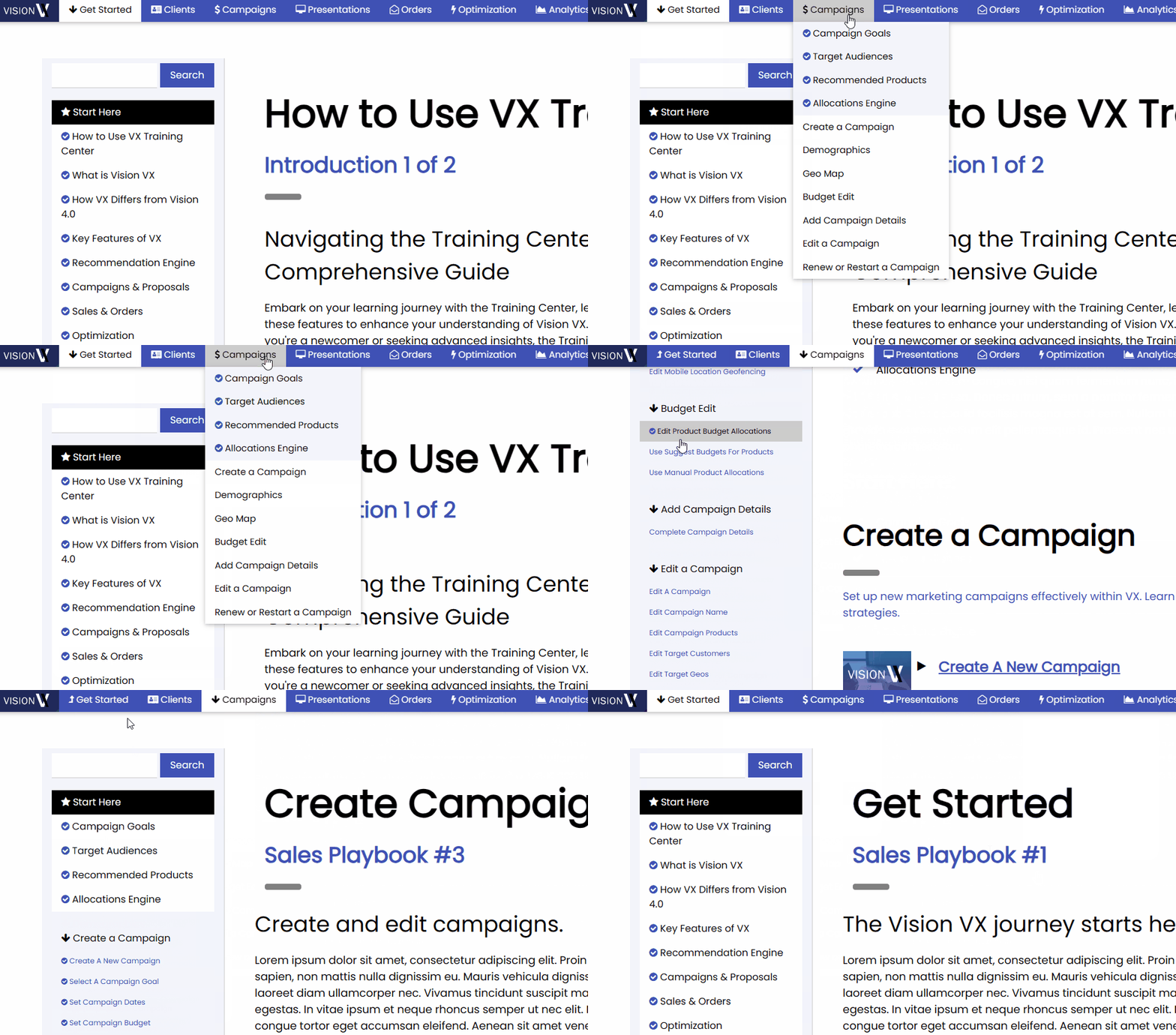
Top Navigation:
The top of the screen houses the essential areas of VX training, known as Playbooks. Each playbook is a curated collection of courses and guides meticulously crafted to facilitate your understanding and navigation of VX. Upon opening a playbook, you'll find a left-nav bar listing various courses and guides.
Feel free to explore any of them at your own pace.
Once you've completed an introduction or guide, a convenient checkbox will appear, indicating the content you've already covered.
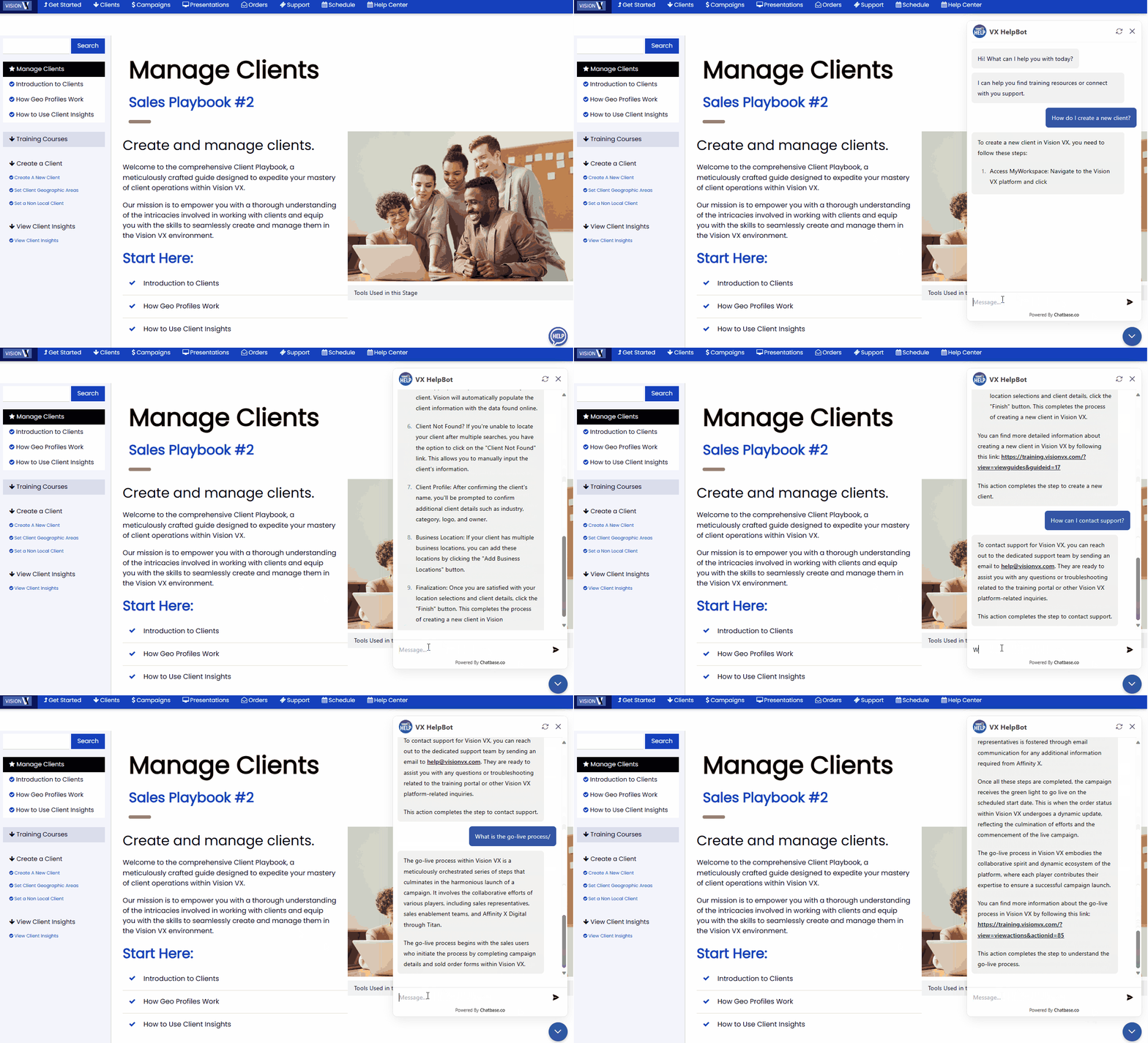
Vision VX HelpBot
To make it easier and faster to find answers to training content, seek step by step information or contact support, we have trained an AI chatbot on the hundreds of resources programmed into the training center.
You may ask the HelpBot for any type of help you may need at any time. You can access the HelpBot via the widget in the lower right hand corner of the screen, at the Help button at the top of the navigation page.
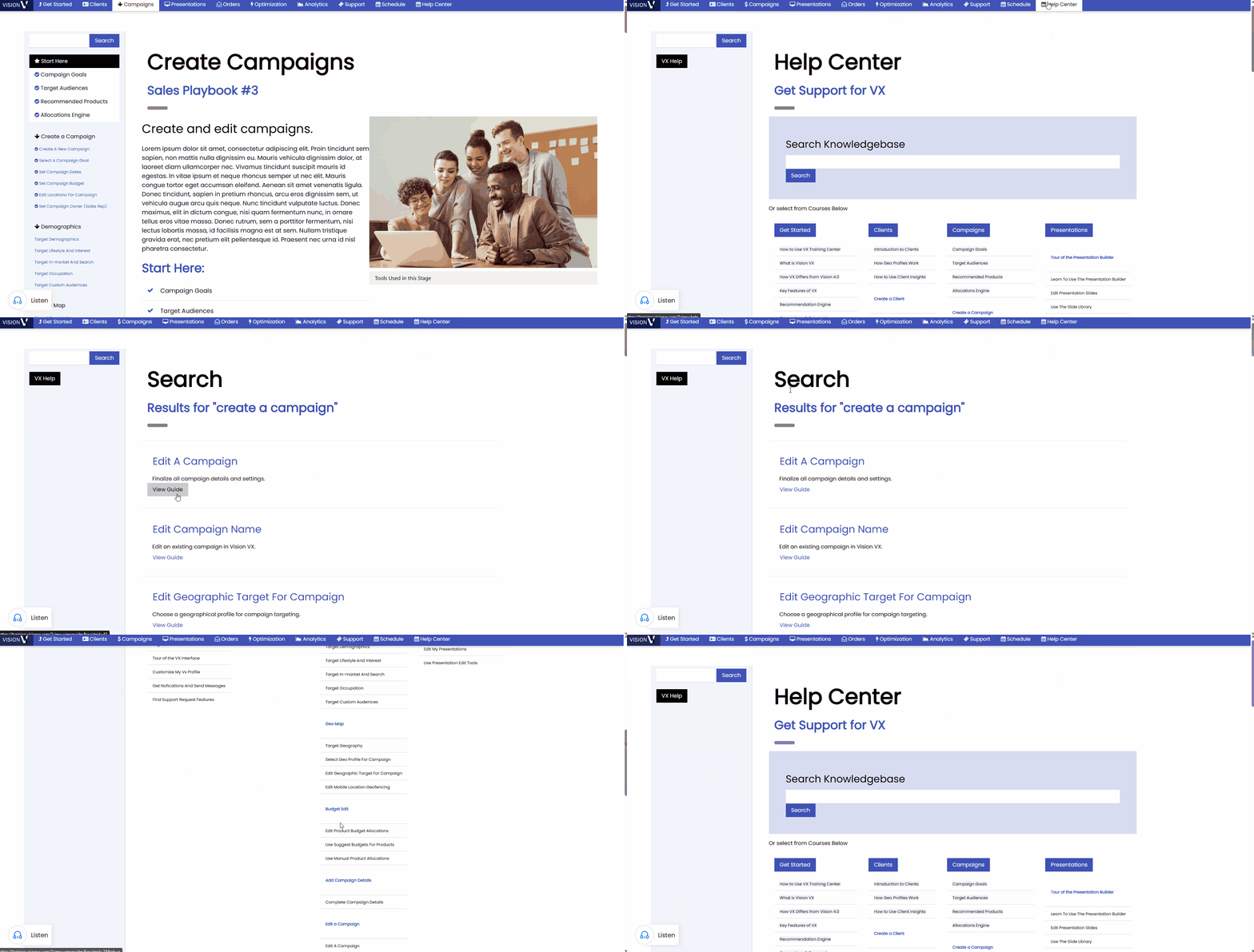
Help Center:
To provide additional support, a help center is conveniently located on the top navigation bar.
This resource offers a searchable index of articles and how-to guides, serving as a valuable reference point for any queries or clarifications you may need during your training journey.
Contacting Support:
For questions or troubleshooting related to the training portal, our dedicated support team is ready to assist you.
Reach out to help@visionvx.com for prompt and personalized assistance, ensuring a seamless and productive learning experience.