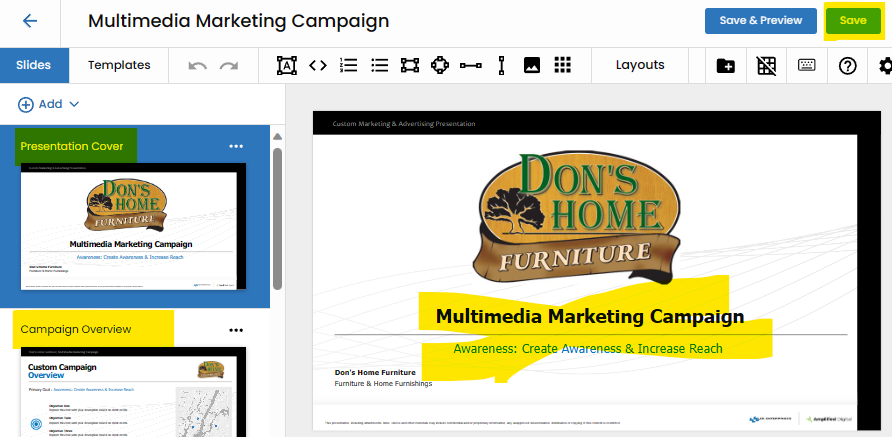
Play Training
Set Template
Number of Guide Steps: 5
In the dynamic world of Vision VX, the platform's inherent flexibility takes center stage through its seamless template-switching capability. Users are empowered to transition between templates effortlessly, introducing a layer of adaptability that allows presentations to evolve in sync with the ever-changing dynamics of campaigns.
Important Notice about Template Changes:
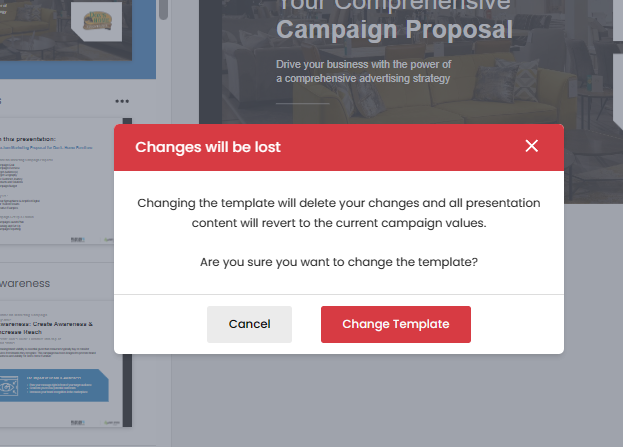
While the ability to switch templates offers versatility, users must bear in mind a crucial caveat. Any custom slide changes made to the presentation will be permanently erased when applying a new template. This emphasizes the need for a thoughtful and strategic approach when contemplating template changes, ensuring that the transition aligns harmoniously with the overall presentation vision.

- 1. Accessing the Presentation Editor
- 2. Navigate to Templates
- 3. Choose a Template
- 4. Acknowledge Template Change Impact
- 5. Review Changes and Save
Accessing the Presentation Editor.
To start the process of template selection, users can either edit an existing presentation or create a new one by following the link conveniently positioned in the left-hand workflow of the Campaign Screen.
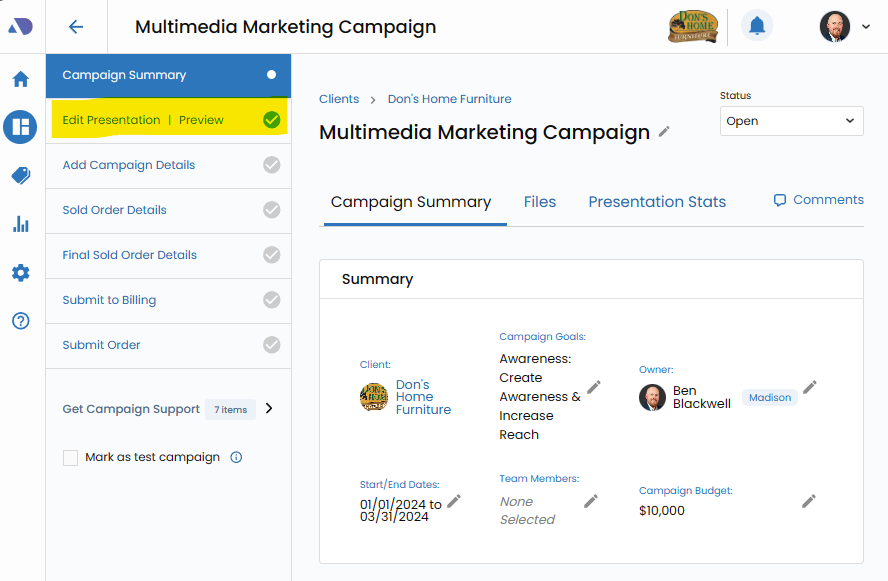
Navigate to Templates.
Within the Presentation editor, click on the Templates tab. This is the gateway to a diverse array of presentation styles and structures that cater to various themes, aesthetics, and communication strategies.
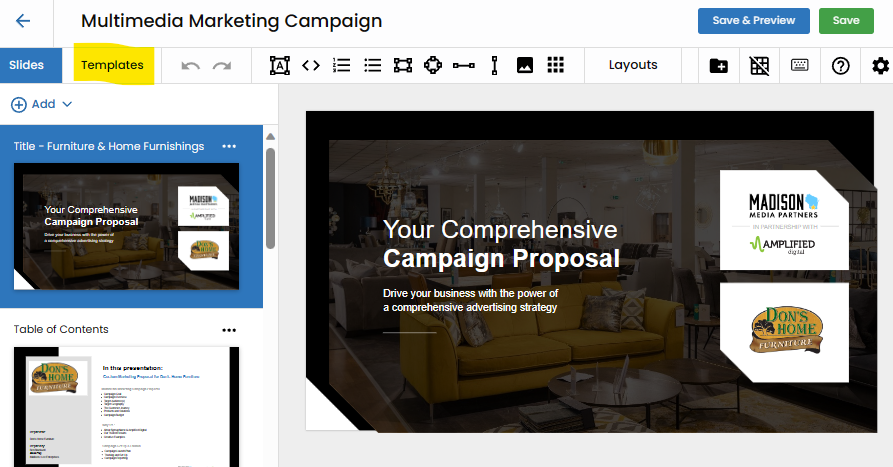
Choose a Template.
Explore the array of templates available and select the one that aligns seamlessly with the envisioned presentation. This step opens up a world of possibilities, allowing users to experiment with different layouts and designs to enhance the visual appeal and effectiveness of their presentations.
New templates are in development - stay tuned.
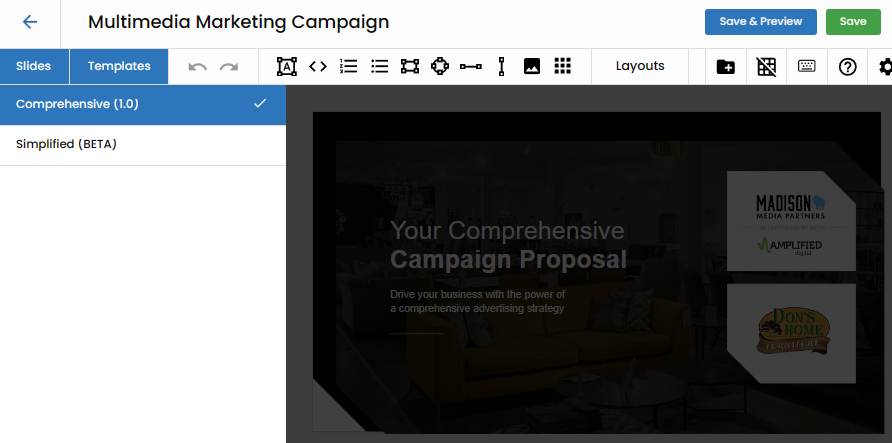
Acknowledge Template Change Impact.
Importantly, acknowledge that applying a new template will overwrite any custom slide changes made to the current presentation. This step prompts users to exercise caution and consider the strategic implications of the template change, ensuring alignment with the overarching vision for the presentation.
Review Changes and Save.
After selecting a new template, carefully review the changes it brings to the presentation. Ensure that the revised structure aligns with the intended message and visual aesthetics. Once satisfied, save the changes to cement the transition to the selected template.