Play Training
Edit Slides
Number of Guide Steps: 6
In the realm of Vision VX, the process of editing slides is designed to be intuitively seamless, drawing parallels with popular presentation tools. With a suite of tools that include text, image, and shape manipulation features, users are endowed with the ability to refine and enhance each slide, fostering a creative and dynamic environment for content development.

- 1. Add or Edit Text
- 2. Add or Edit Shapes
- 3. Add or Edit Image
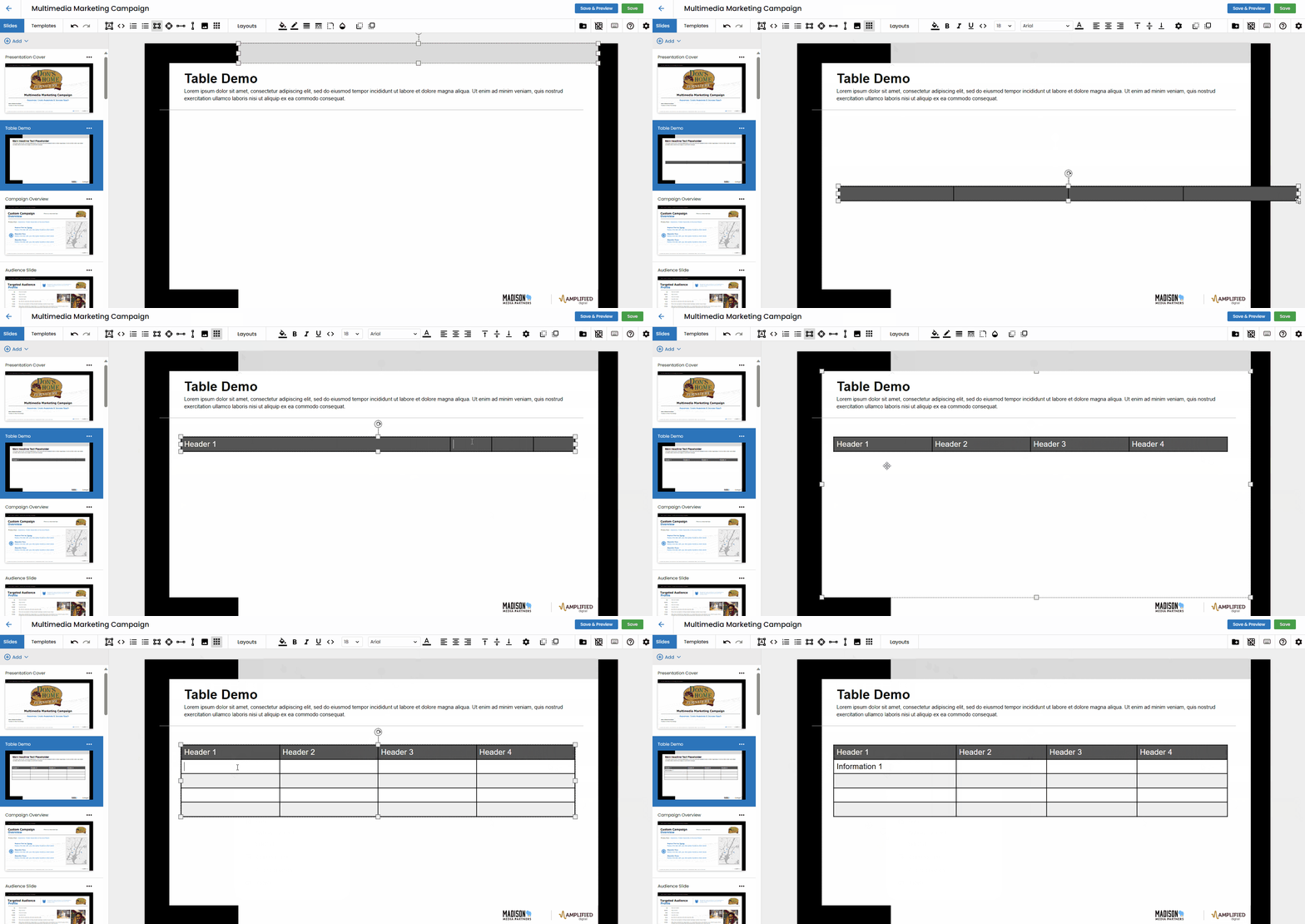
- 4. Add or Edit Table
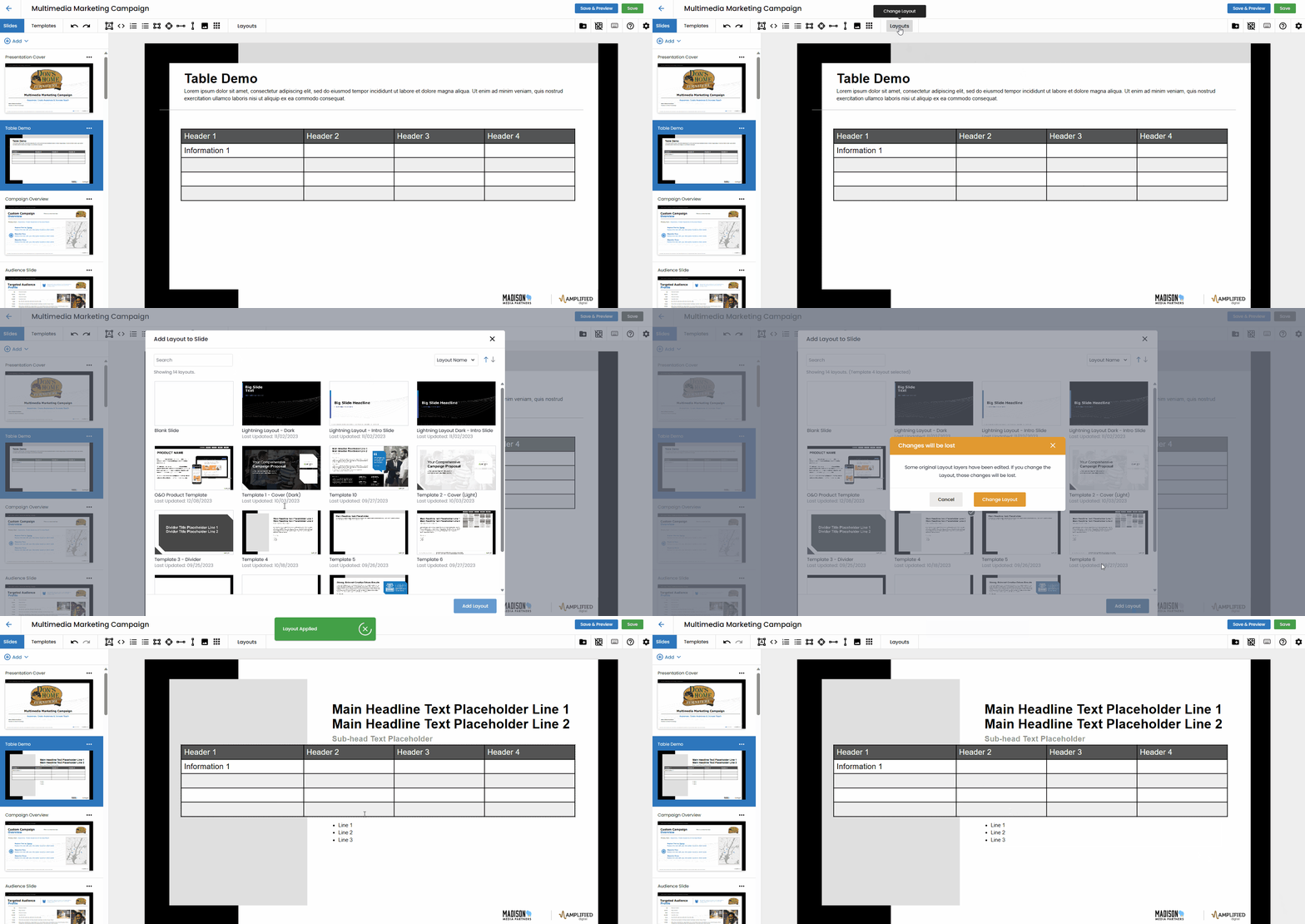
- 5. Applying Layouts
- 6. Access More Training
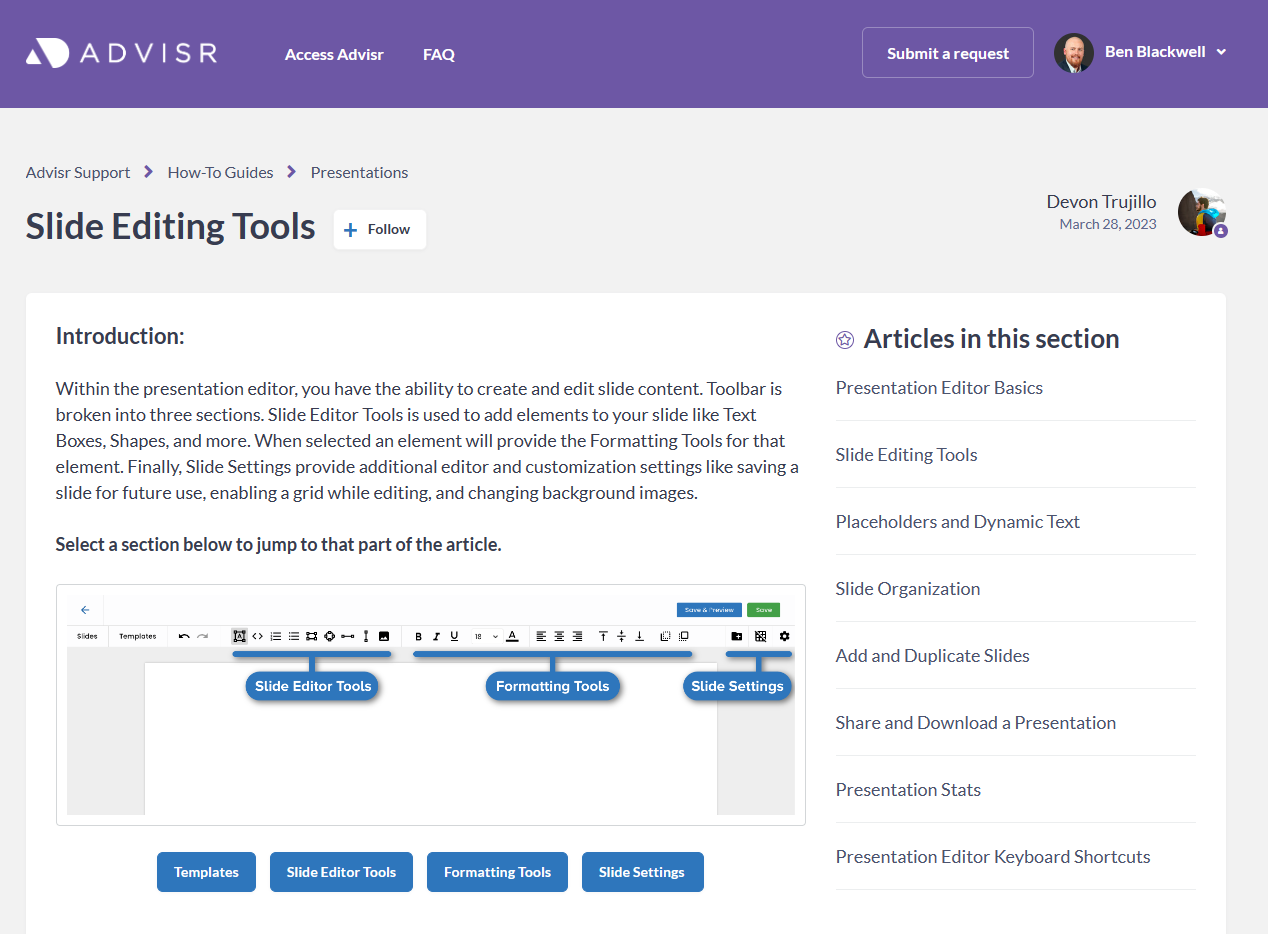
Add or Edit Text.
Utilize the Text Box tool, coupled with font customization tools, to seamlessly add or modify text within your presentation. This feature empowers users to craft compelling narratives, headlines, and body text with ease.
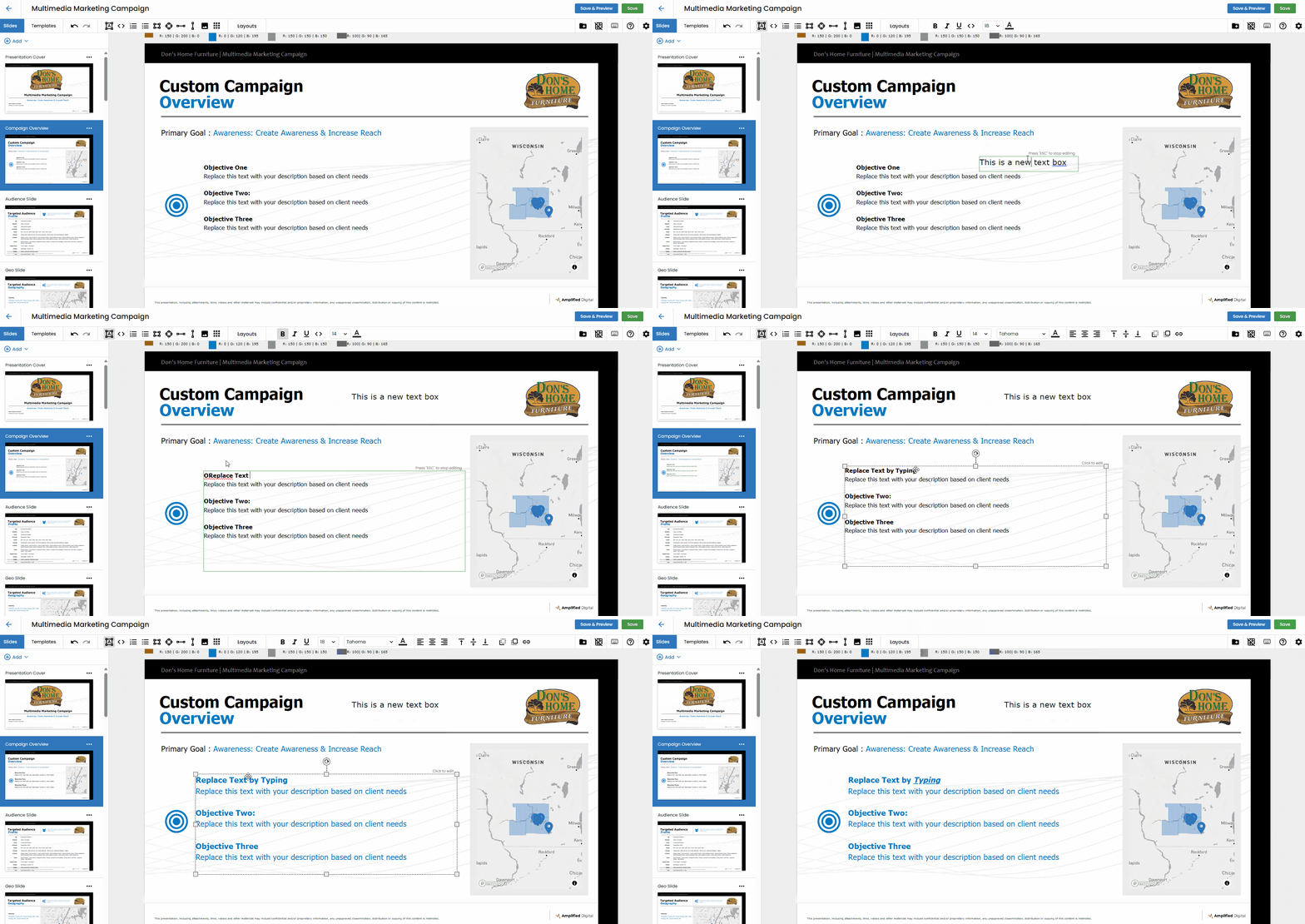
Add or Edit Shapes.
Leverage the shapes tool to create new geometric elements or modify existing shapes. This intuitive feature ensures that users have the flexibility to infuse their slides with visually appealing and informative shapes.
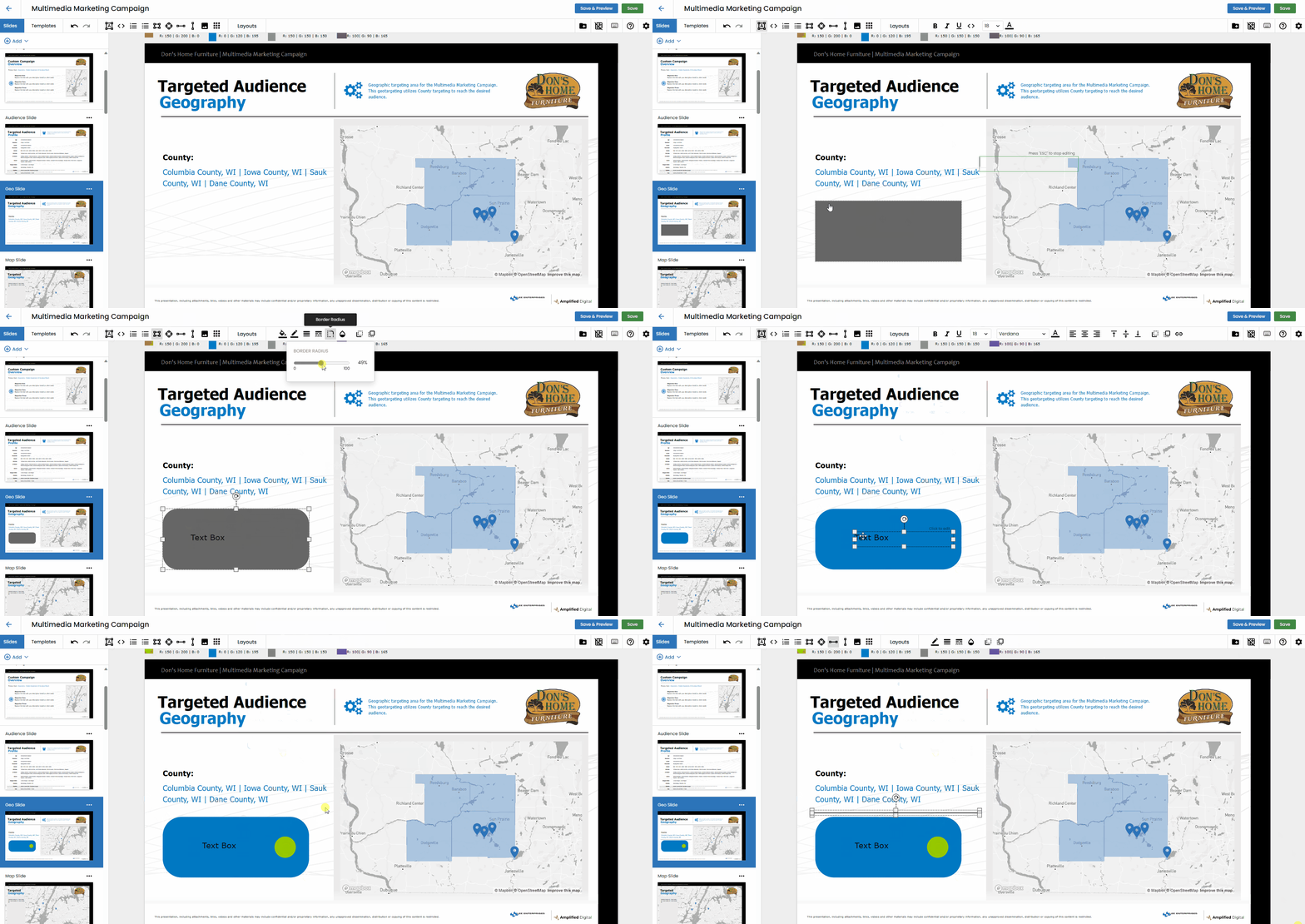
Add or Edit Image.
Enhance the visual appeal of your presentation by incorporating images. Choose from the library's diverse collection or easily copy and paste images from external sources like browsers, Word documents, or other programs, providing a rich multimedia experience.
Add or Edit Table.
For improved readability and information organization, insert tables seamlessly into your slides. This tool enables users to present complex data in a structured and visually appealing manner.
Applying Layouts.
Modify the current layout of your slides effortlessly. The ability to apply different layouts ensures that the visual structure of your presentation aligns with the narrative and messaging goals.
Access More Training.
Elevate your proficiency by exploring additional training resources. Visit the Advisr Training Center for comprehensive instructions and insights on advanced techniques for editing slides, ensuring you harness the full potential of Vision VX.
Slide Editing Tools – Advisr Support