Play Training
How to Log Into Vision Vx
Number of Guide Steps: 8
Use this by step guide to log into Vision VX for the first time using multi-factor authentication from Microsoft Azure and Lee SSO.
This will require additional software installed to your smart device (such as your smart phone).

- 1. Open the VX Sign In Page and Enter Your Work Email Address
- 2. Click the Sign In with Lee Azure SSO button
- 3. Download the Microsoft Authenticator App
- 4. On the Microsoft log in popup, enter your work email address again
- 5. Enter your Single Sign-On Details
- 6. Enter the provided code in the Authenticator App to finish the process
- 7. Choose Yes to Stay Signed In
- 8. You are now signed in to Vision VX
Open the VX Sign In Page and Enter Your Work Email Address.
To open the sign in page visit https://app.advisr.com
Then enter your work email address on the Sign In Page and click the continue button.
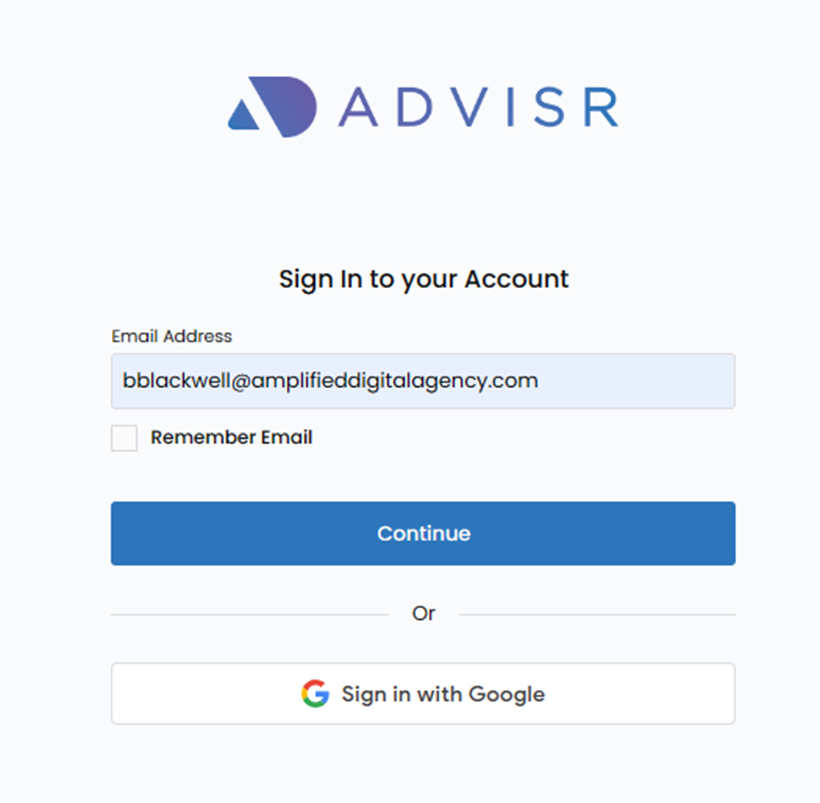
Click the Sign In with Lee Azure SSO button .
Now, you will need to click the Sign In With Lee Azure SSO Button to continue logging into Vision VX.

Download the Microsoft Authenticator App.
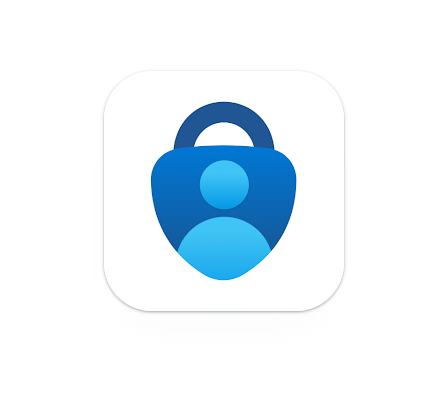
The first step is to download the Microsoft Authenticator App to your phone which is used for verification and login of Vision VX.
1. Google Android. On your Android device, go to Google Play to download and install the Authenticator app.
2. Apple iOS. On your Apple iOS device, go to the App Store to download and install the Authenticator app.
Sign in with your Lee work email to this app. You will need to use it at least the first time you log in, and then frequently in the future.
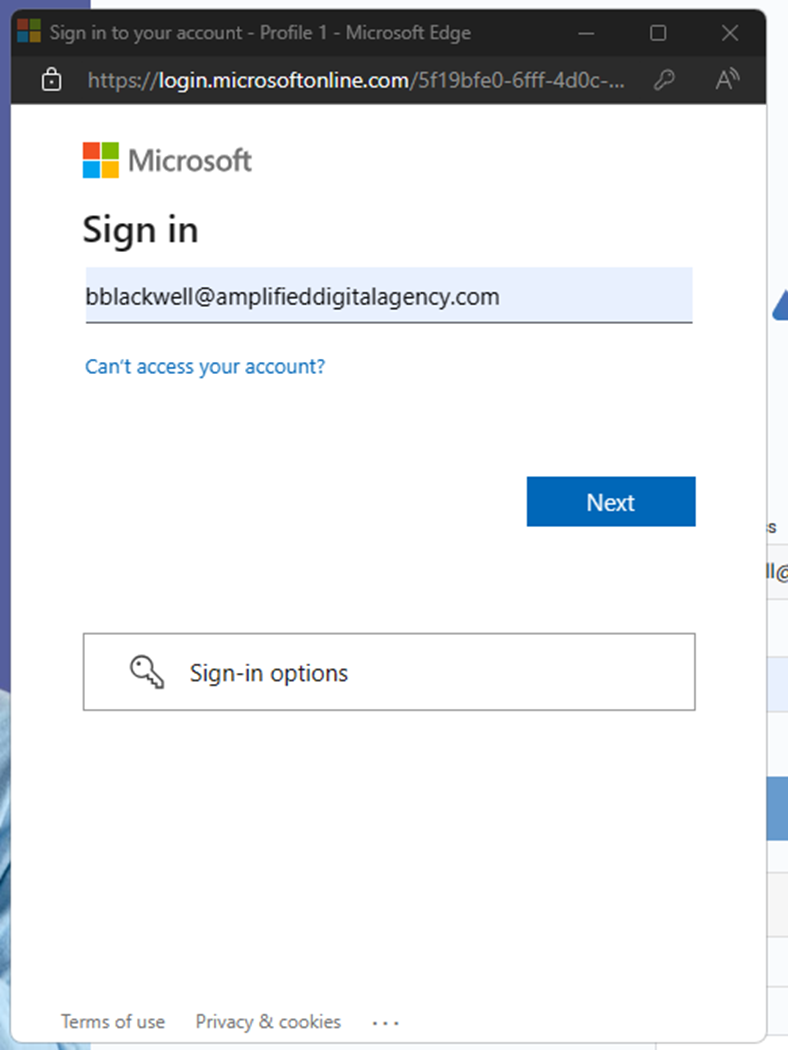
On the Microsoft log in popup, enter your work email address again.
Microsoft will prompt you again for your work email address, enter it on the pop-up then click next.
Again, you must now enter your work emaill address again in the pop-up window to begin the authenication process
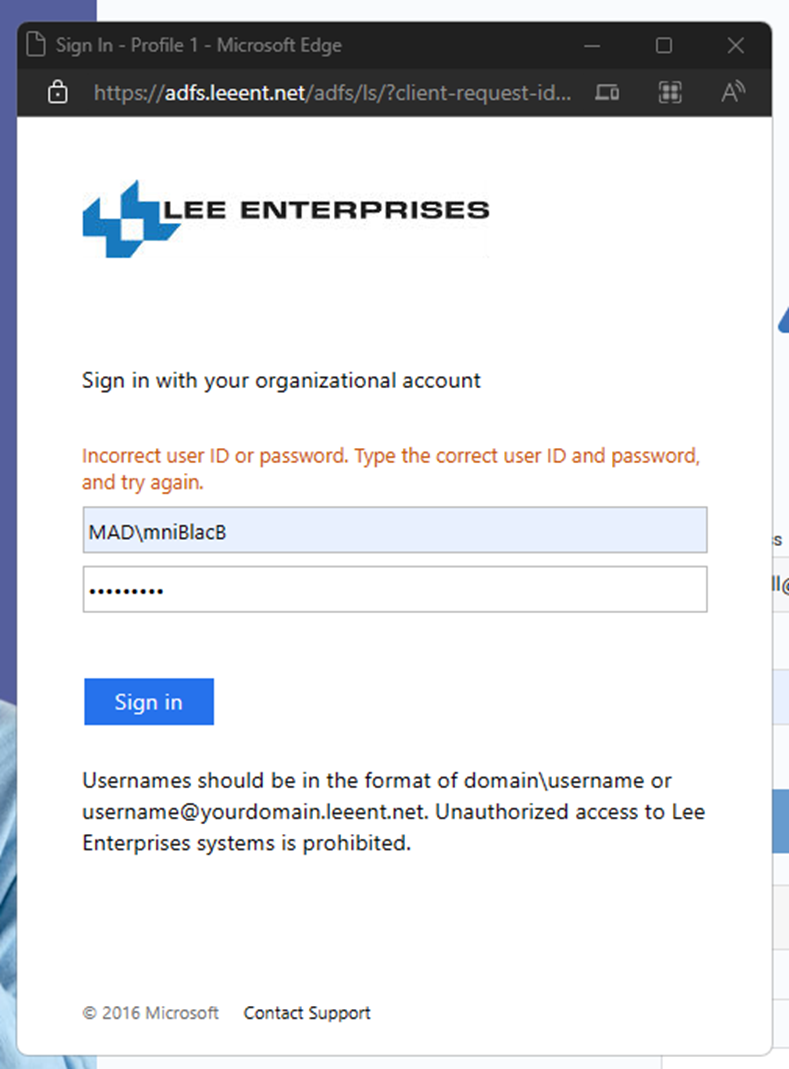
Enter your Single Sign-On Details.
You will now see a Lee Mini-SSO Log in screen. Like the one your used to, but only smaller.
It's important that you enter your normal SSO information, which is your networkloginname, and password.
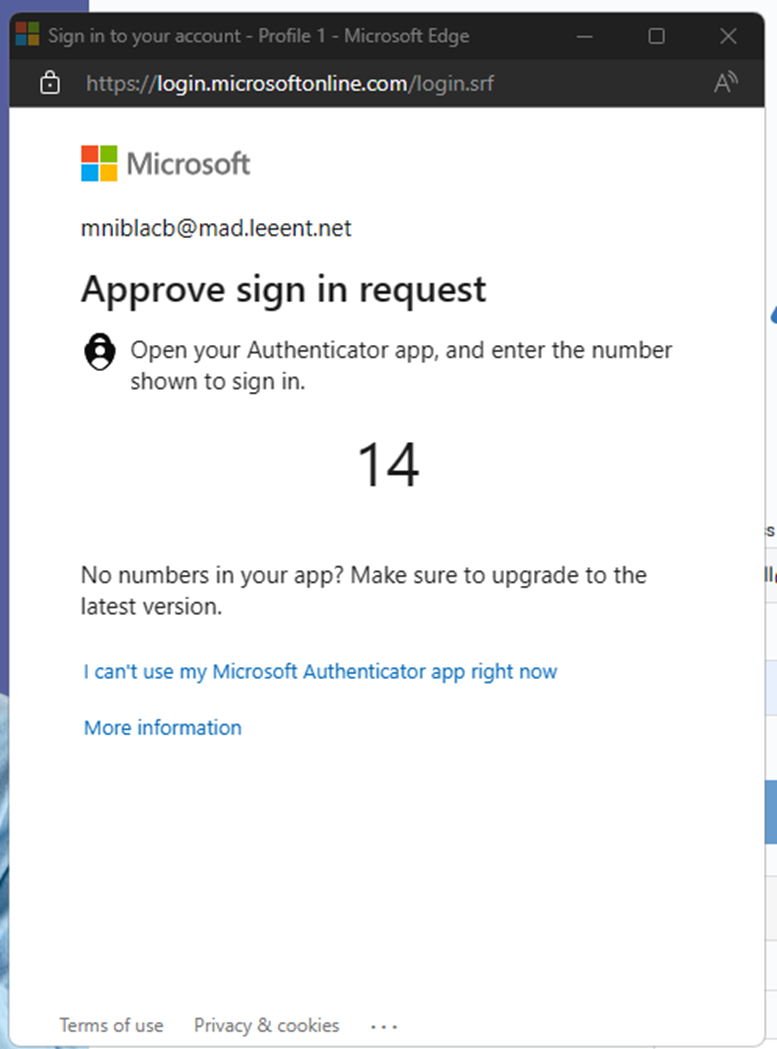
Enter the provided code in the Authenticator App to finish the process.
A code will we generated for you to confirm in your Microsoft Authenticator App. Enter the code in the App to finish the process.
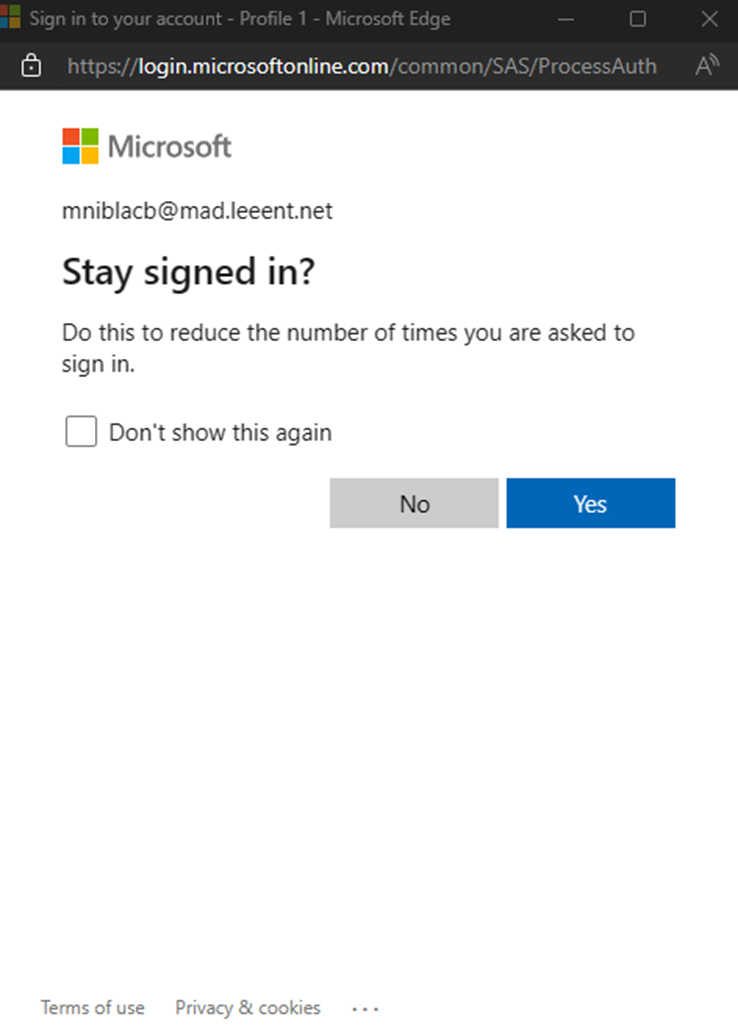
Choose Yes to Stay Signed In.
After inputting the code, it is recommended that you choose the Stay Signed In feature to ensure you don't need to authenticate like this every time you need to access VX
You are now signed in to Vision VX.
You are now logged into Vision VX.
If you encounter any issues logging in please email us at help@visionvx.com