Play Training
How to Renew (extend) a Campaign
Number of Guide Steps: 10
Extending a VX campaign involves a renewal process that utilizes the campaign copy feature, ensuring a smooth transition into the renewed or extended period.
Here's a step-by-step guide to renewing a VX campaign:

- 1. Retrieve Titan Order ID (from current campaign)
- 2. Copy the Campaign You Want to Renew (Extend)
- 3. Name the Renewed Campaign
- 4. Edit Campaign Dates
- 5. Edit Campaign Budget
- 6. Ensure Product Alignment
- 7. Edit and Verify Campaign Details
- 8. Complete Sold Order Details
- 9. Complete Final Sold Order Details
- 10. Submit to Billing
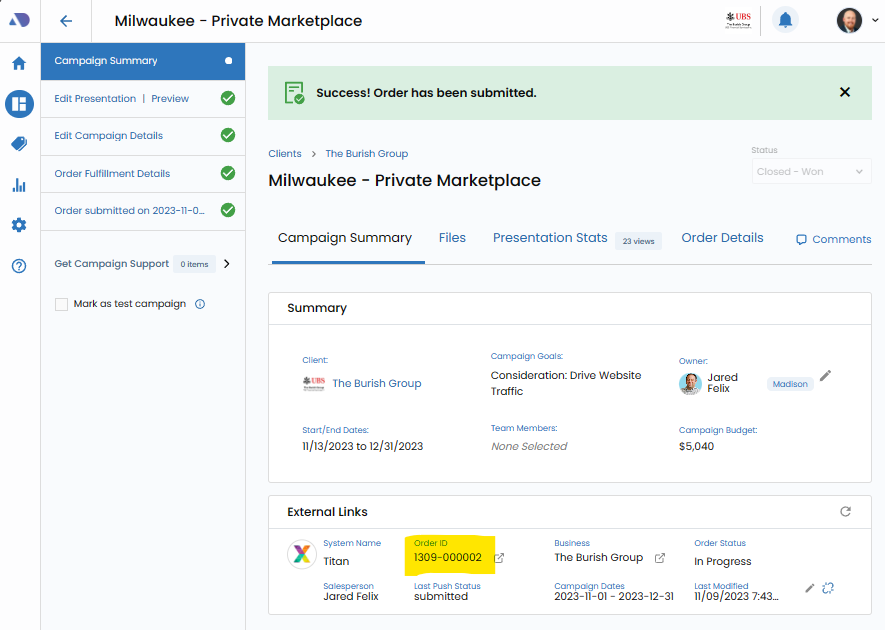
Retrieve Titan Order ID (from current campaign).
Open the campaign you wish to renew and locate the Titan Order ID.
Copy it to your clipboard or make a note of it, as you will need it during the renewal process.
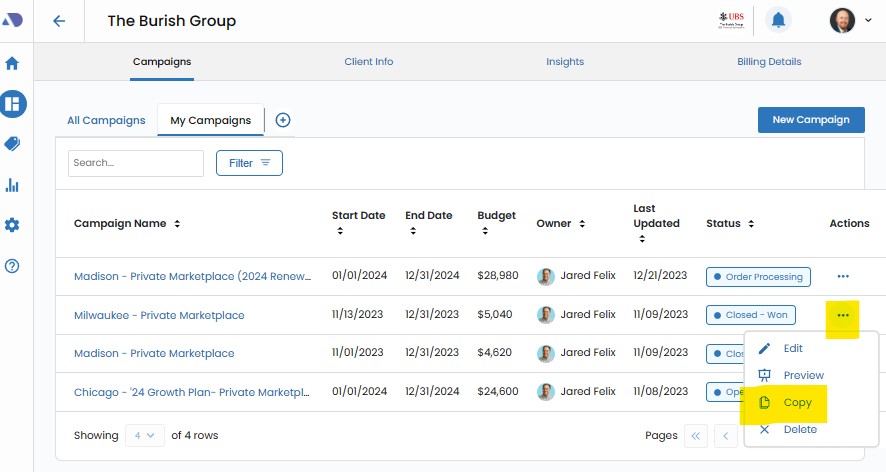
Copy the Campaign You Want to Renew (Extend).
Navigate to your Campaign Screen and locate the campaign you wish to renew.
Use the campaign copy feature to duplicate the campaign.
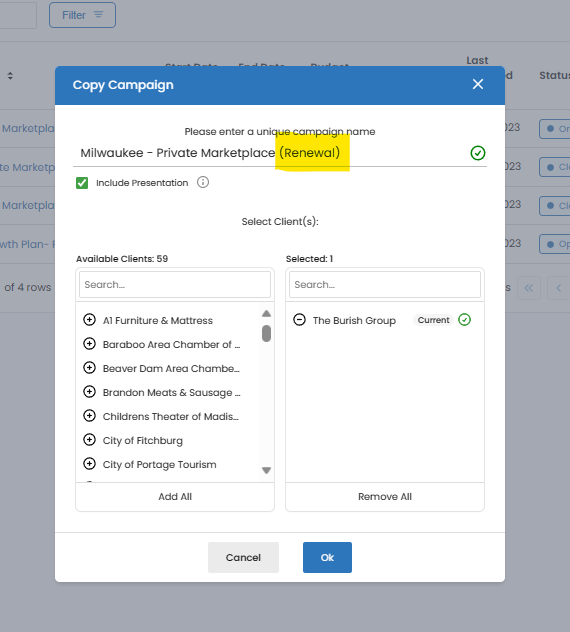
Name the Renewed Campaign.
Give the copied campaign a descriptive name, and it's recommended to include the word "Renewal" in the title for clarity.
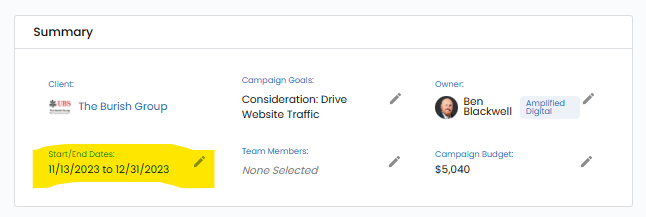
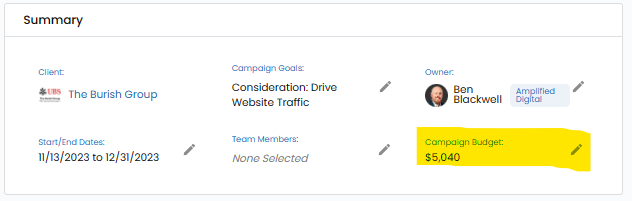
Edit Campaign Dates.
Open the copied campaign and edit the campaign dates to reflect the renewed or extended period.
Edit Campaign Budget.
Adjust the total budget for the campaign based on the renewed timeframe.
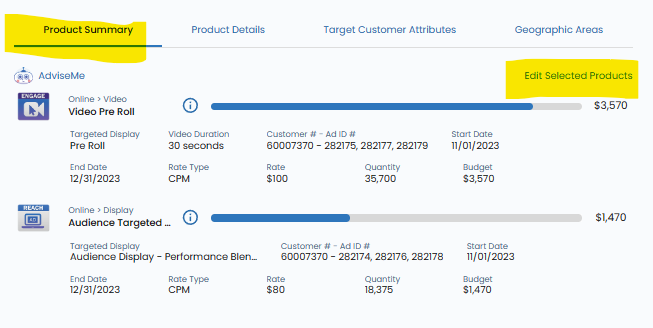
Ensure Product Alignment.
Verify that the product alignment is correct for the renewed or extended period.
This includes checking that the products are aligned with the campaign goals and objectives.
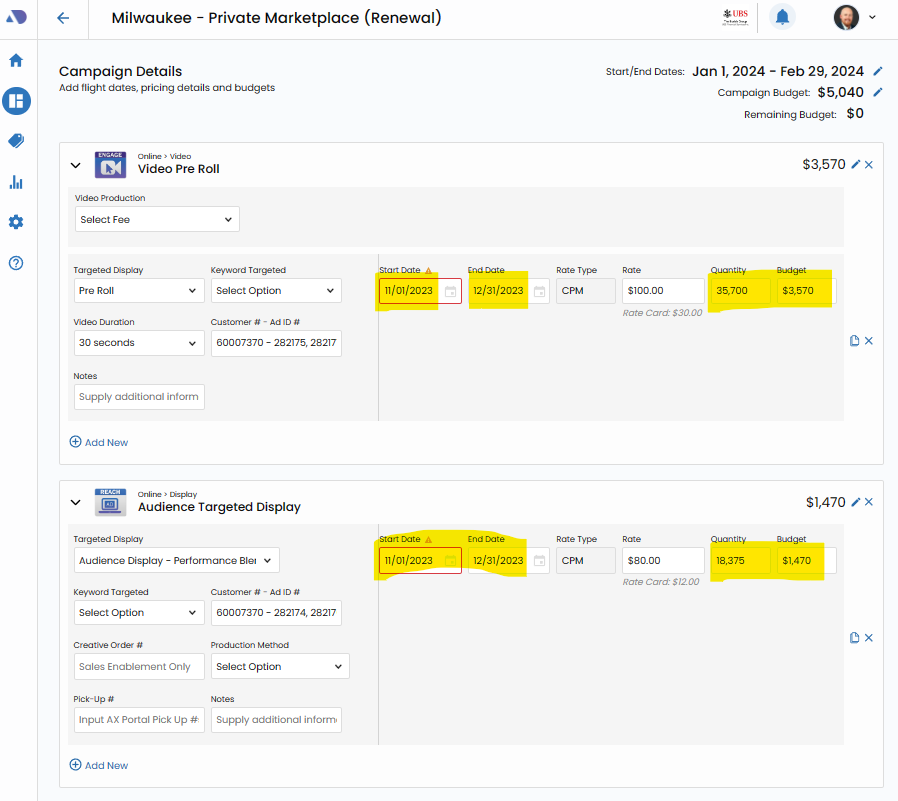
Edit and Verify Campaign Details.
Access the Campaign Details screen and ensure that all rates, dates, amounts, and other details align with the new timeframe and budget.
Make necessary edits to accurately represent the renewed or extended campaign.
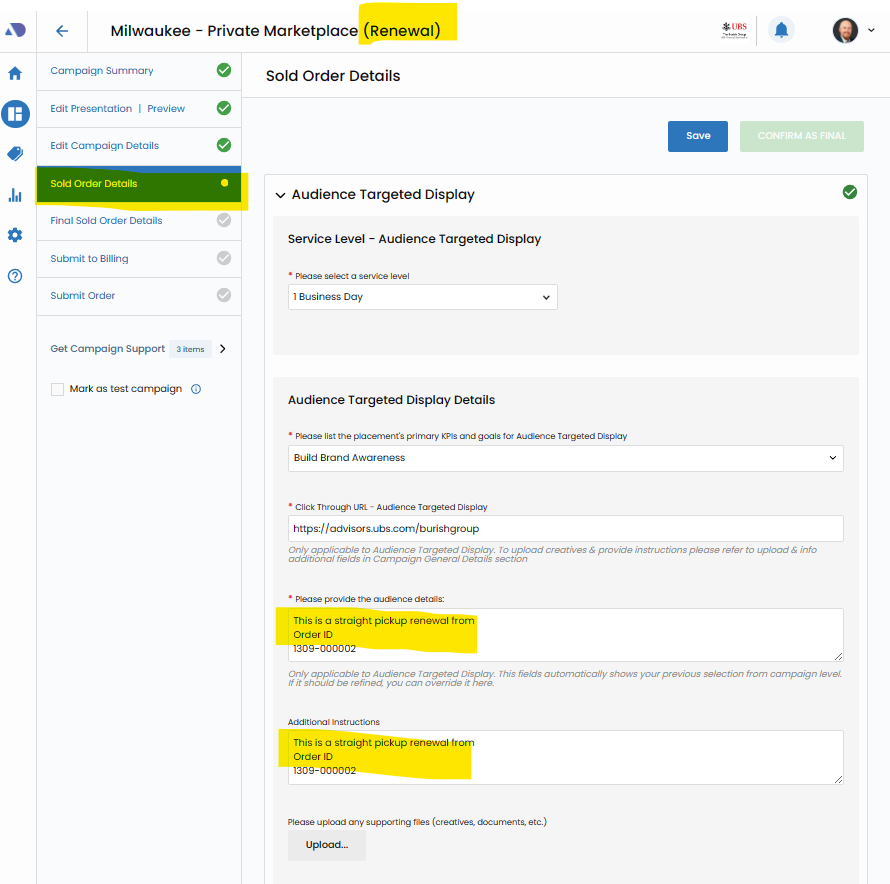
Complete Sold Order Details.
Within the Sold Order form, update the audience and notes boxes for each product.
Include text that indicates that this is a renewal or an extension, by referencing the Titan Order number from the original campaign. You copied this Order ID in Step 1 of this guide,
Example:
"This is a straight pickup renewal from Order ID 1309-000002"
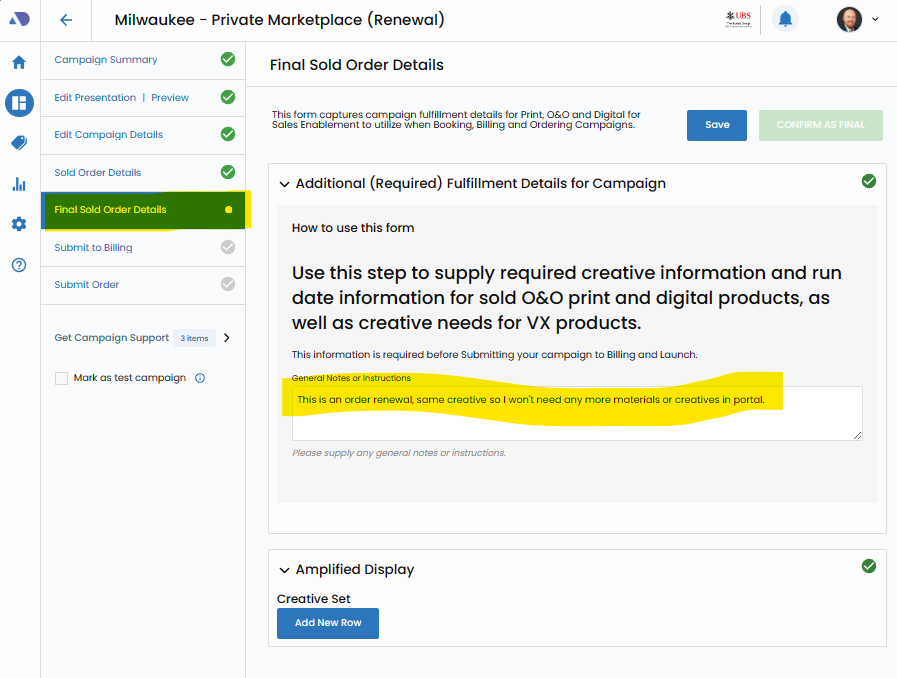
Complete Final Sold Order Details.
In the Final Sold Order Details form, communicate with the sales enablement team regarding any new creatives needed for the renewed or extended campaign.
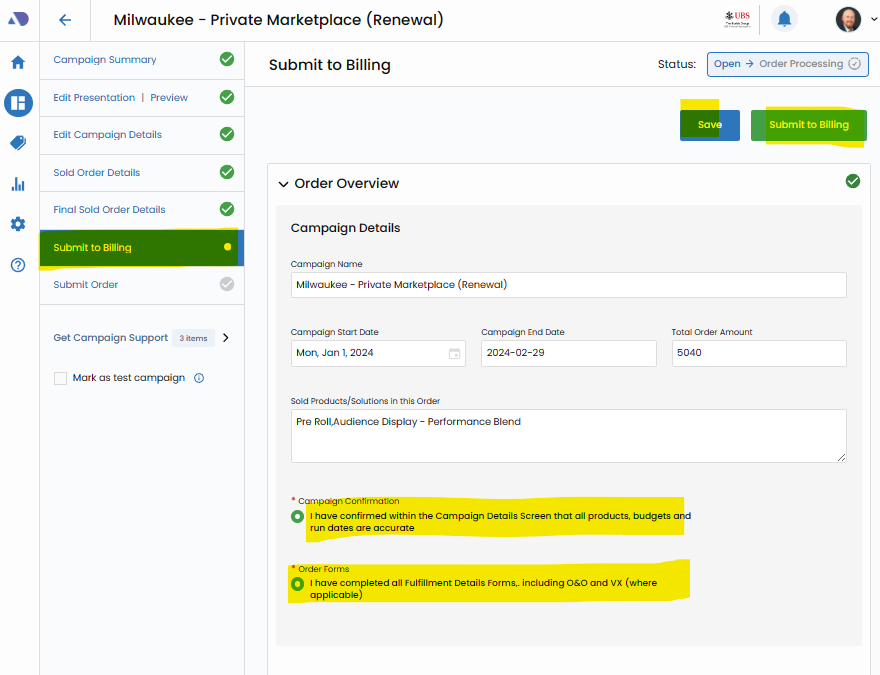
Submit to Billing.
Once all details are accurately configured and updated, submit the renewed campaign to billing. This initiates the renewal process and ensures that the extended campaign moves smoothly through the necessary workflow steps.
By following these steps, you can effectively renew or extend a VX campaign, maintaining clarity, accuracy, and alignment with the client's goals and objectives.
Congratulations, you've reached the end of this playbook.
Be sure to review all the courses and guides in this playbook to ennsure that you've reviewed all the material.A check mark next to each item will inform you if have reviewed or not.