Play Training
Customize My Vx Profile
Number of Guide Steps: 4
Customizing your profile in Vision VX allows you to personalize your professional presence within the platform. Follow these steps to efficiently tailor your profile information to reflect your identity and enhance your user experience:

- 1. Accessing Profile Customization
- 2. Setting Personal Details
- 3. Uploading a New Profile Image
- 4. Saving Changes
Accessing Profile Customization.
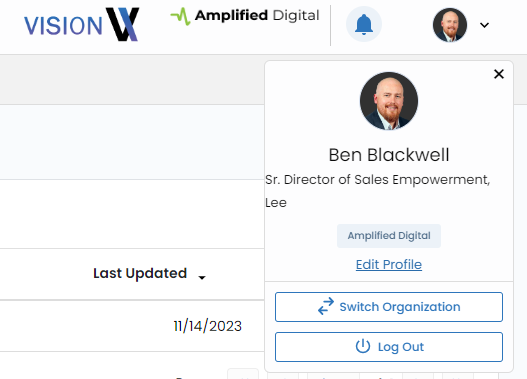
Locate the profile dropdown in the upper right-hand corner of the Vision VX interface. It takes the form of a small photo circle with a downward arrow. Click on this dropdown to reveal a set of options.
Within the dropdown menu, click on the "Edit Profile" blue link. This action directs you to your dedicated profile page, where you can make adjustments to various details.
Setting Personal Details.
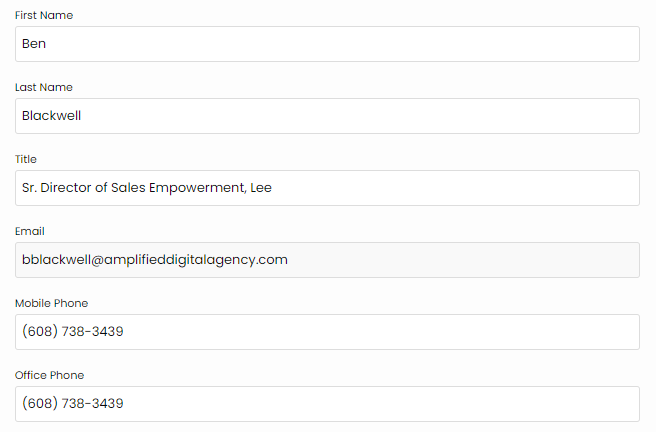
On the profile page, you have the ability to input or update essential details, including your:
- First Name
- Last Name
- Title
- Mobile and Office Phone
Uploading a New Profile Image.
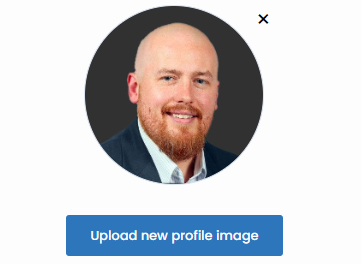
Enhance the visual appeal of your profile by uploading a new image. Utilize the "Upload New Profile Image" button, conveniently located directly beneath the current profile image area. This feature allows you to showcase a professional and recognizable photo that contributes to a more engaging user experience
Saving Changes.
Click the green "Save" button to confirm and save your modifications. This final step ensures that your customized profile settings are updated and reflected across the Vision VX platform.
By actively customizing your profile in Vision VX, you not only create a more personalized and professional representation but also contribute to a cohesive and collaborative user environment. Regularly updating your profile information ensures that your colleagues and collaborators have accurate and current details, fostering effective communication and collaboration within the platform.

Congratulations, you've reached the end of this playbook.
Be sure to review all the courses and guides in this playbook to ennsure that you've reviewed all the material.A check mark next to each item will inform you if have reviewed or not.