Play Training
Create A New Campaign
Number of Guide Steps: 4
Embarking on the journey of creating a new campaign in Vision VX is a pivotal step towards effective client engagement and successful marketing endeavors. Follow these detailed steps to seamlessly initiate and manage your campaigns

- 1. Navigate to the Client Dashboard:
- 2. Click the New Campaign Button
- 3. Input a Descriptive Campaign Name
- 4. Campaign Testing Option
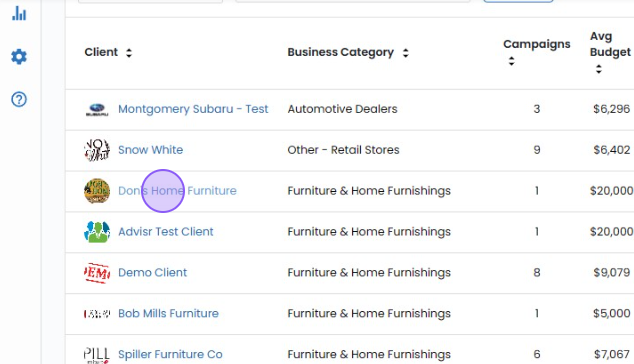
Navigate to the Client Dashboard:.
Begin by navigating to the client for whom you intend to create a campaign. The client dashboard is your central command center for all activities related to that particular client.
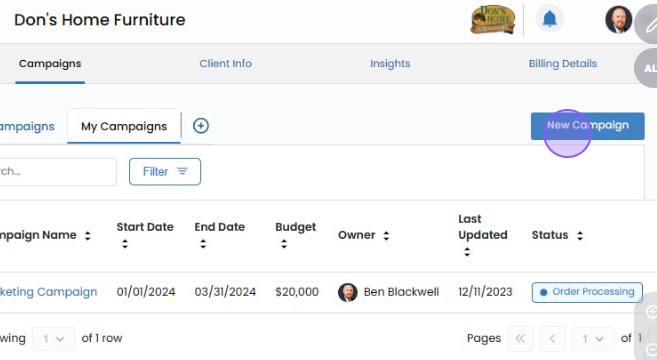
Click the New Campaign Button.
Look for and click on the prominently placed 'New Campaign' button. This initiates the process of crafting a targeted and impactful campaign tailored to your client's needs.
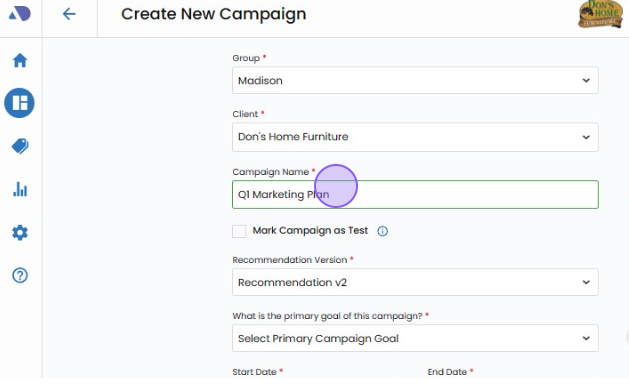
Input a Descriptive Campaign Name.
The campaign name holds significant importance as it serves multiple purposes. It informs your client presentation, aids in efficient campaign management, facilitates easy editing, and plays a crucial role in the eventual selling of the campaign. Choose a name that succinctly captures the essence and purpose of the campaign.
Flexibility to Modify Campaign Name:
It's important to note that the campaign name can be modified at any point before the campaign is submitted for billing. This flexibility ensures that you can refine and adjust the name as needed during the campaign creation and management process.
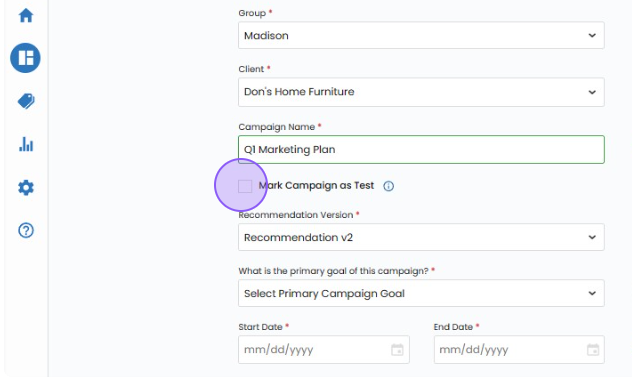
Campaign Testing Option.
If you're in the testing phase or want to ensure that the campaign doesn't impact your Vision VX sales results, consider using the 'Mark Campaign as Test' option. This feature safeguards against unintentional inclusion in official sales data, providing a secure testing environment.