Play Training
Edit A Campaign
Number of Guide Steps: 7
Prior to submitting a campaign for final go-live through the Sold Order process, nearly every element of the campaign is editable and can be refined.
It is recommended to make all nessecary edits prior to Submitting to Billing, which kicks off the go-live process.
To edit a campaign that is still not Submitted to Billing, follow these steps.

- 1. Locate the Campaign in Workspace
- 2. Edit Campaign Products
- 3. Edit Campaign Details
- 4. Edit Target Audience Attributes:
- 5. Edit Geographic Areas
- 6. Edit Campaign Budget
- 7. Edit Campaign Dates
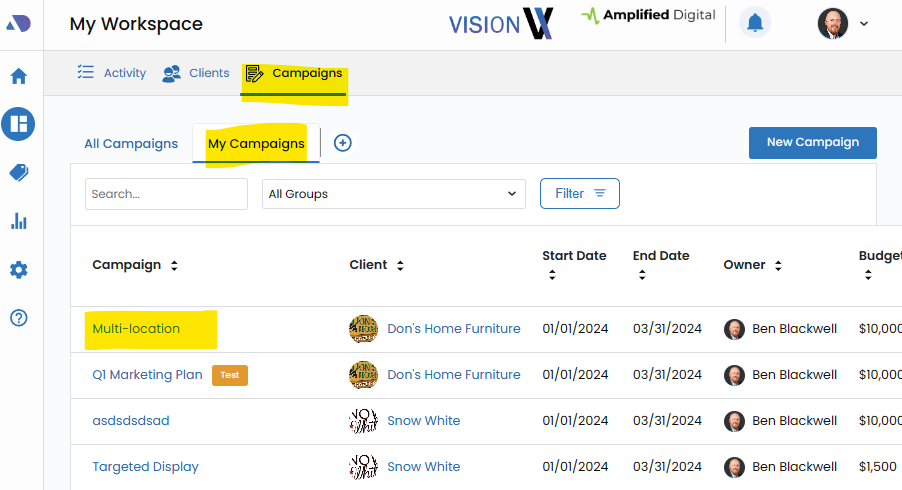
Locate the Campaign in Workspace.
Initiate the editing process by locating the specific campaign within the Workspace. Navigate to the Campaigns tab, where a comprehensive overview of all campaigns is available.
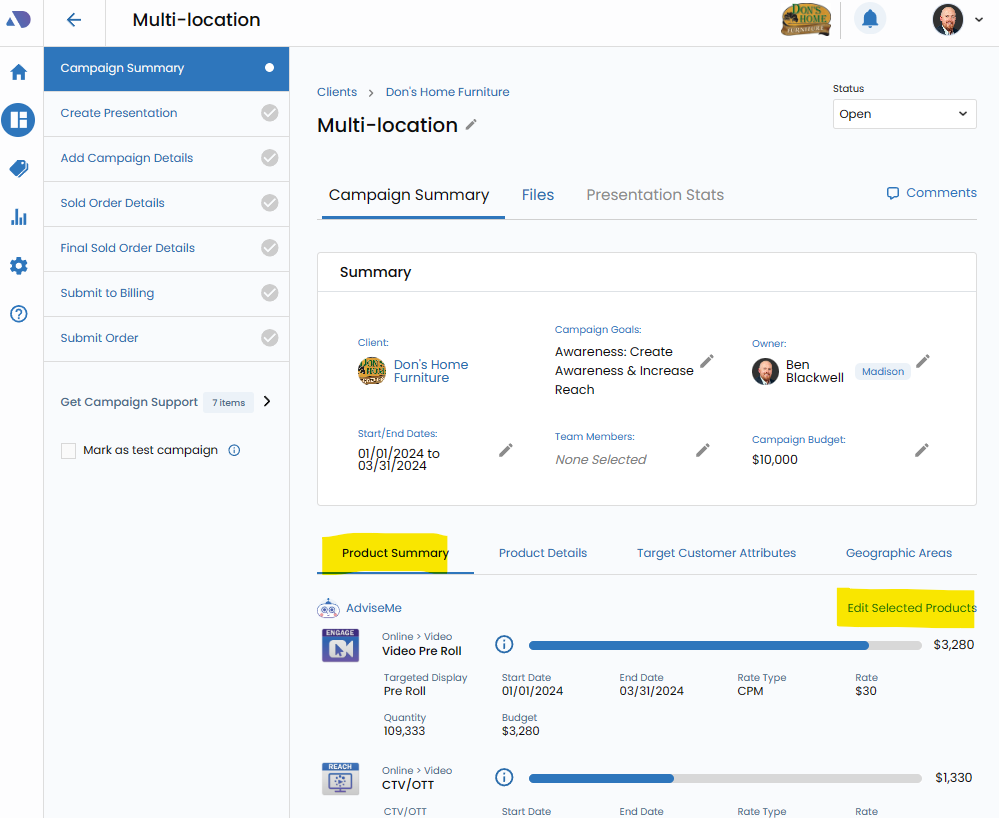
Edit Campaign Products.
Click on the Product Summary Tab for a detailed view of the campaign's products. To make modifications, access the Edit Selected Products link. This functionality enables users to fine-tune product details, ensuring they align with the evolving needs and objectives of the campaign.
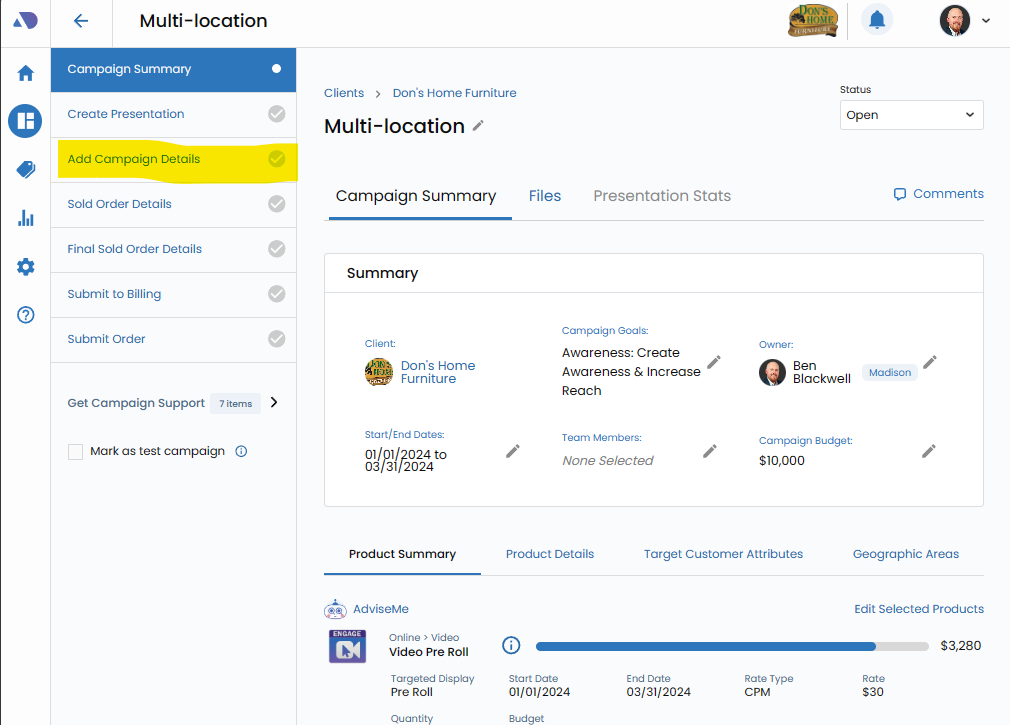
Edit Campaign Details.
Navigate to the left-hand workflow and click on the Edit Campaign Details link. This section provides a holistic view of the campaign, allowing users to make essential adjustments to key parameters such as start and end dates, budget allocations, and other critical details.
Edit Target Audience Attributes:.
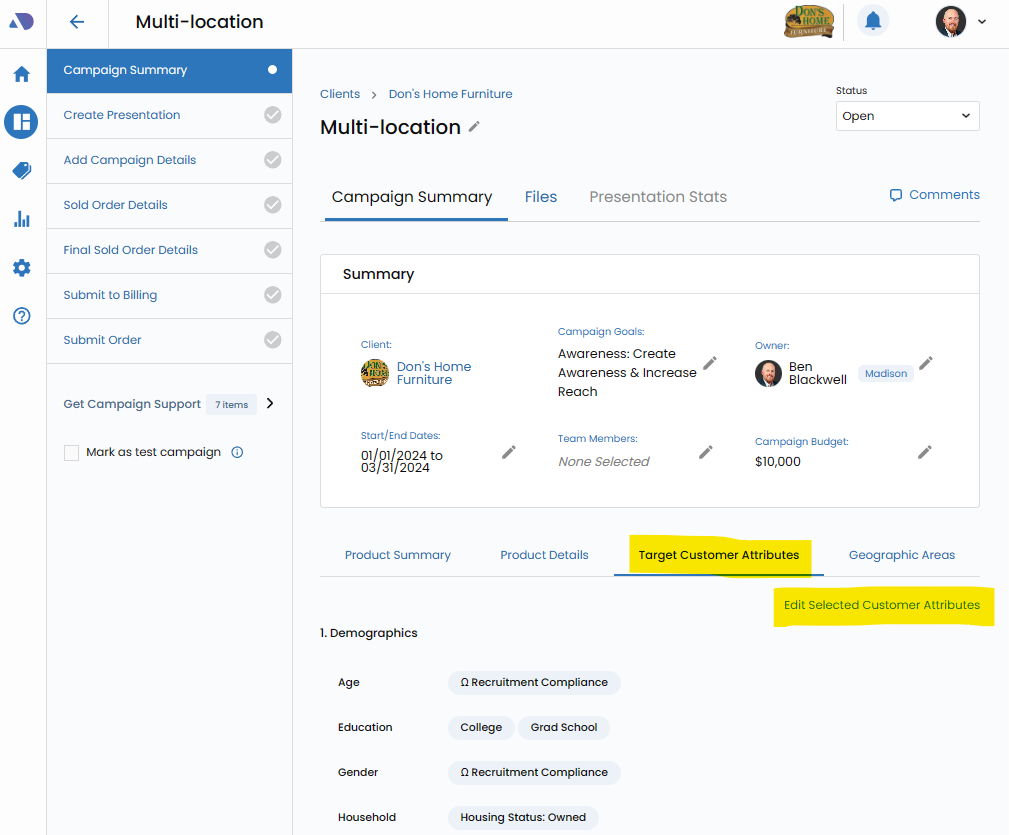
For precision targeting, head to the Target Customer Attributes tab. Utilize the Edit Selected Customer Attributes link to customize and refine the attributes of the target audience. This step is crucial for ensuring that the campaign resonates effectively with the intended demographic.
Edit Geographic Areas.
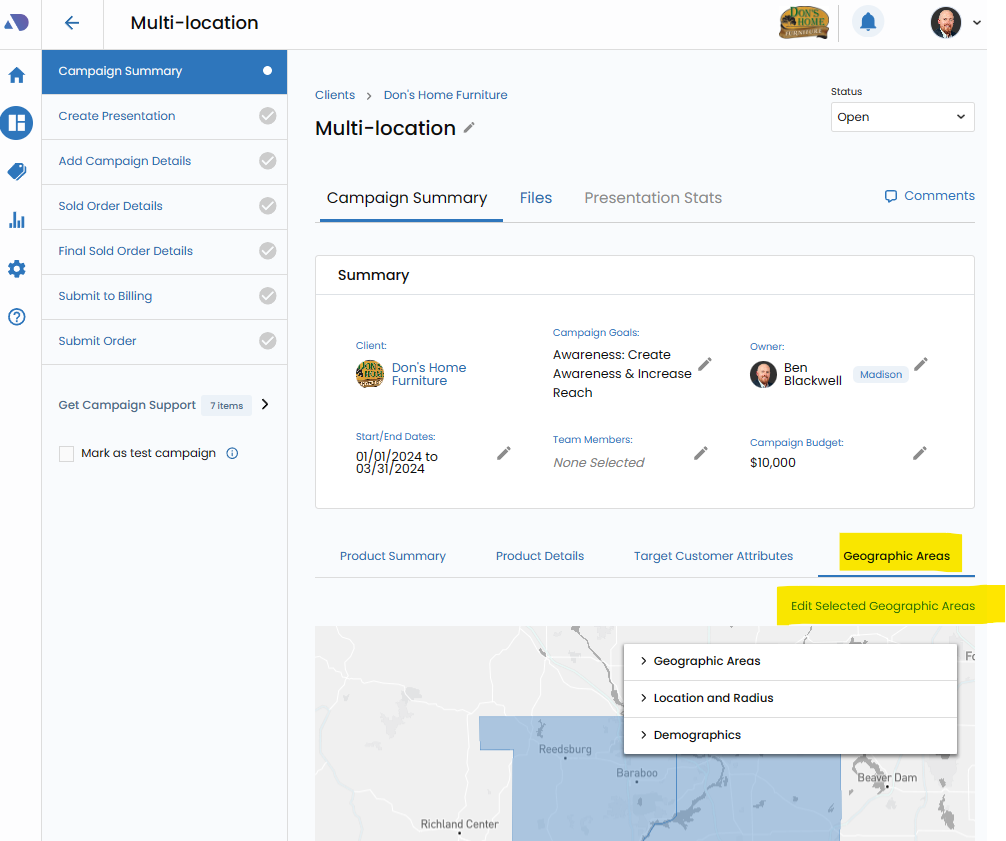
Tailor the geographic focus of the campaign by visiting the Geographic Areas tab. Click on the Edit Selected Geographic Areas link to adjust and optimize the campaign's geographical targeting, ensuring it aligns with the intended market or audience.
Edit Campaign Budget.
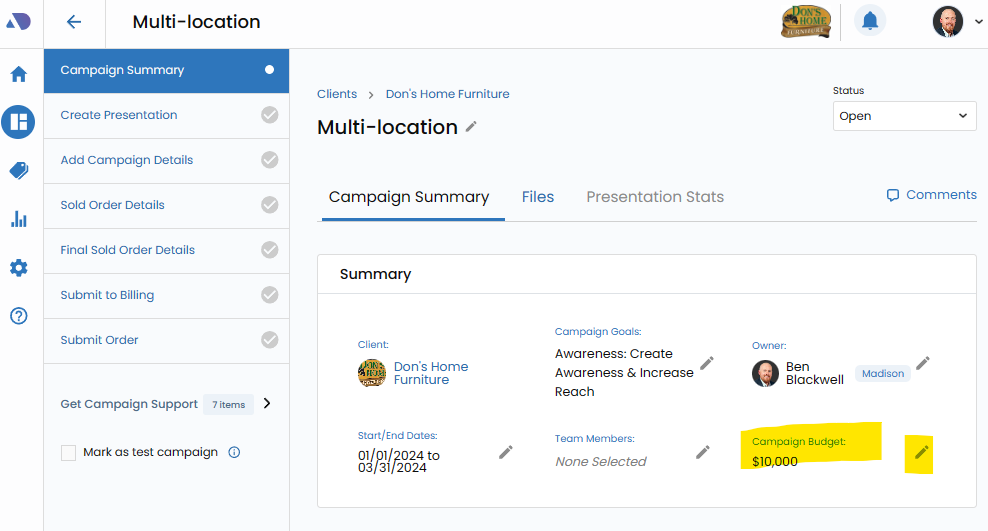
On the campaign summary card, access the pen icon next to Campaign Budget. This step allows for dynamic adjustments to the budget, ensuring that financial allocations are in harmony with the campaign's goals and requirements
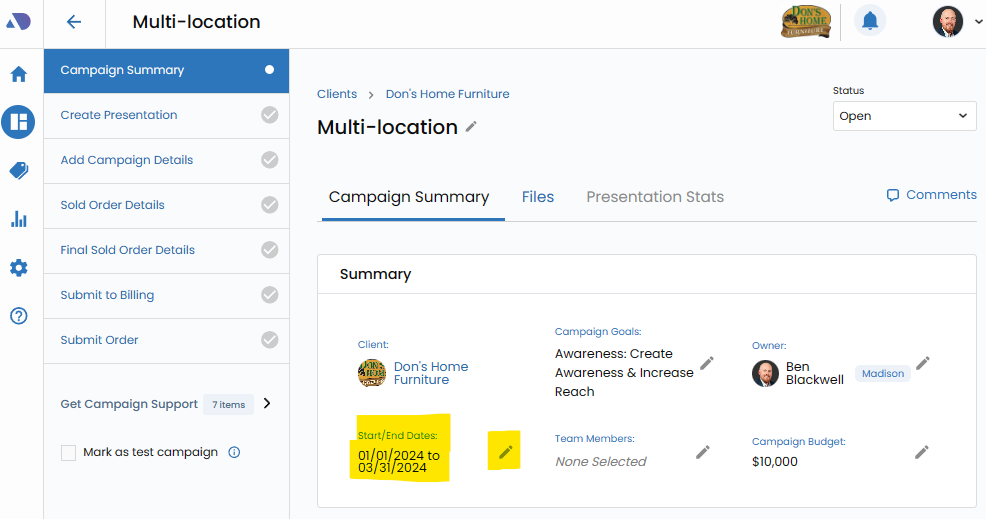
Edit Campaign Dates.
Fine-tune the temporal aspects of the campaign by clicking the pen icon next to the Start/End dates. This flexibility ensures that campaign timelines are adjusted to accommodate strategic considerations or evolving client needs